

This guide walks you through creating a deployment for a Slack channel. It assumes you've already created a Dosu account and have access to the dashboard.
1. Create a Deployment#
Go to Settings > Deployments and click Add New.
2. Install the Slack App#
If you haven't already installed the Dosu Slack app, you'll be prompted to do so.
You'll be redirected to Slack's authorization page. Select the workspace you want to install Dosu on from the dropdown.
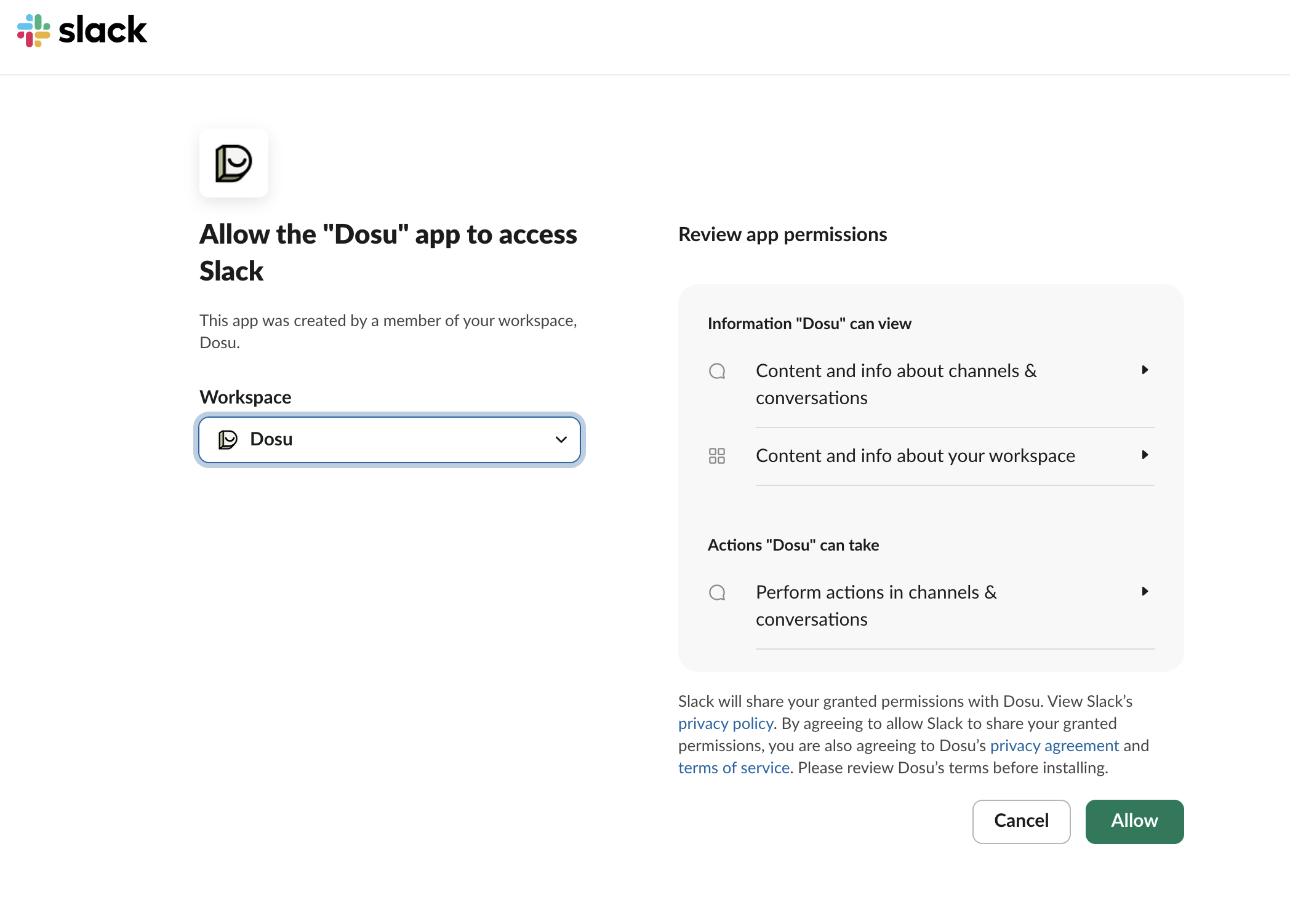
After authorizing access, you'll be redirected back to Dosu.
3. Select Channel and Configure#
Choose the Slack channel where you want Dosu to be active, then configure how Dosu behaves in this deployment.
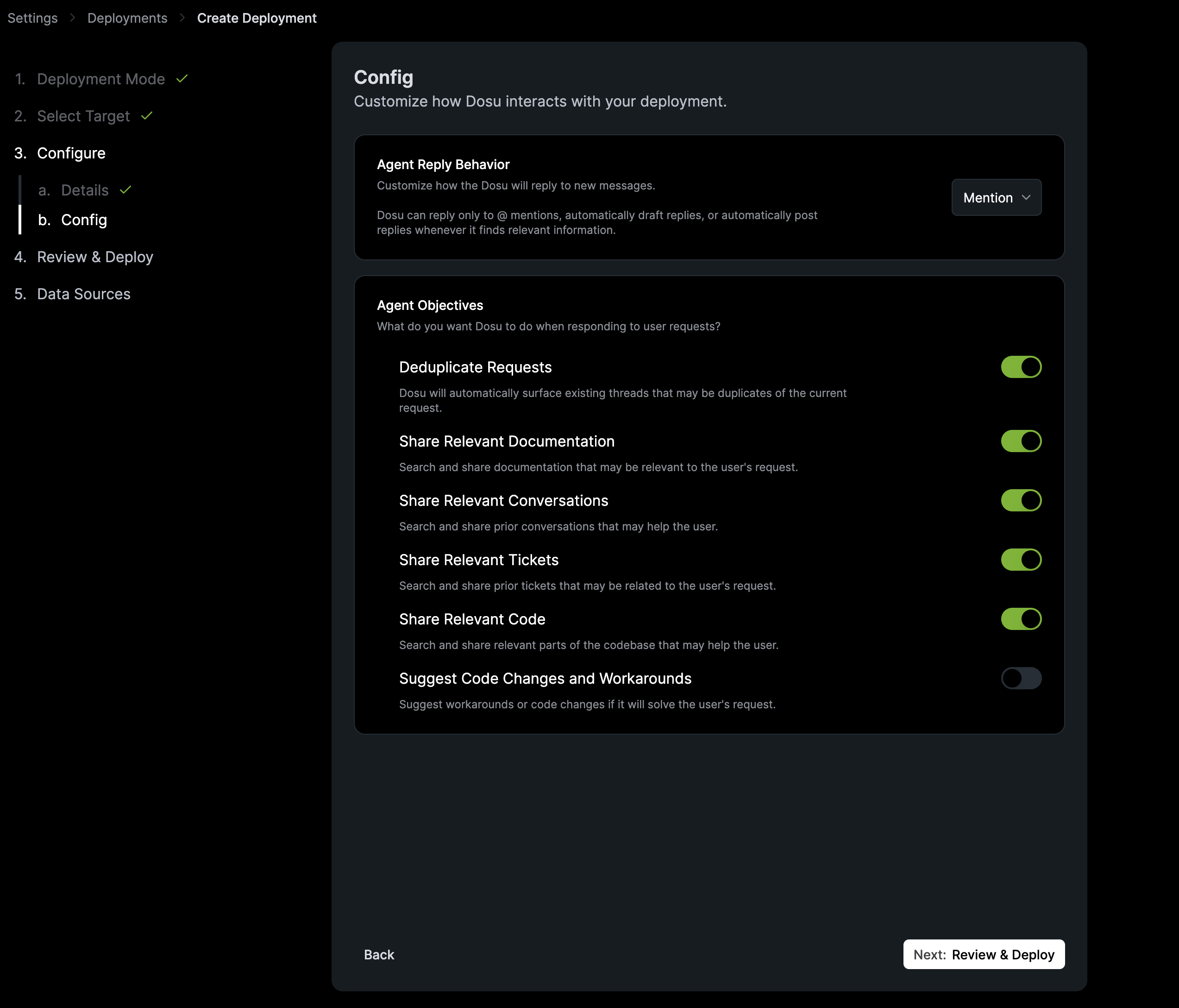
For detailed information about each option, see Slack Configuration.
4. Review and Deploy#
Review your configuration, then click Create Deployment to finish.
Your new deployment will appear on the Deployments page.
5. Interact with Dosu#
With your deployment created, mention @dosu in the connected Slack channel to ask a question. Dosu will respond with relevant context from your connected data sources.
