

You can invite team members to your organization from Settings > Members.
Adding Members to Your Organization#
For standard organizations, member invitation is the primary way to add team members. However, enterprise accounts have an additional option: domain-based autojoin.
Enterprise Autojoin: When autojoin is enabled for an enterprise account, users who sign up with an email domain that matches the organization's configured domains are automatically added to the organization. This provides a streamlined onboarding experience for enterprise customers.
Important: Autojoin can occur at multiple touchpoints: during initial signup (OAuth/SSO callback) or during password-based login for users who weren't previously auto-joined. The system determines if a user is "newly created" by checking if their account was created within the last 90 seconds.
How Autojoin Works#
Autojoin can be triggered at two points:
- During initial signup: When a user creates an account via OAuth/SSO or password-based registration, autojoin is evaluated within 90 seconds of account creation.
- During password-based login: When an existing user logs in with a password, the system checks if they should be auto-joined to an enterprise account. This allows users who signed up before autojoin was enabled to be added when they next log in.
When a user with a matching email domain authenticates:
- The system checks for any pending invitations for that email address in the organization
- If a pending invitation exists:
- The user is added with the role specified in the invitation (Admin or Member)
- The invitation is automatically consumed and removed
- Onboarding is marked as complete
- If no invitation exists:
- The user is added as a Member (default role)
- Onboarding is marked as complete
When autojoin succeeds, users are automatically redirected to their newly joined organization, providing a seamless onboarding experience.
This allows organizations to pre-assign specific roles to employees before they sign up, while maintaining general autojoin for all users with matching email domains. For example, you can send an Admin invitation to a new team lead, and when they sign up, they'll automatically receive Admin permissions instead of the default Member role.
Roles#
Owners and Admins can invite new members. When inviting, you assign one of two roles:
Admin: Manage and invite members, manage and view all deployments, and view billing.
Member: View all deployments.
The Owner role cannot be assigned through the dashboard. To transfer ownership, contact the Dosu team.
Sending an Invitation#
Click Invite to open the invitation dialog. Enter the member's email address and select their role. Email addresses are case-insensitive.
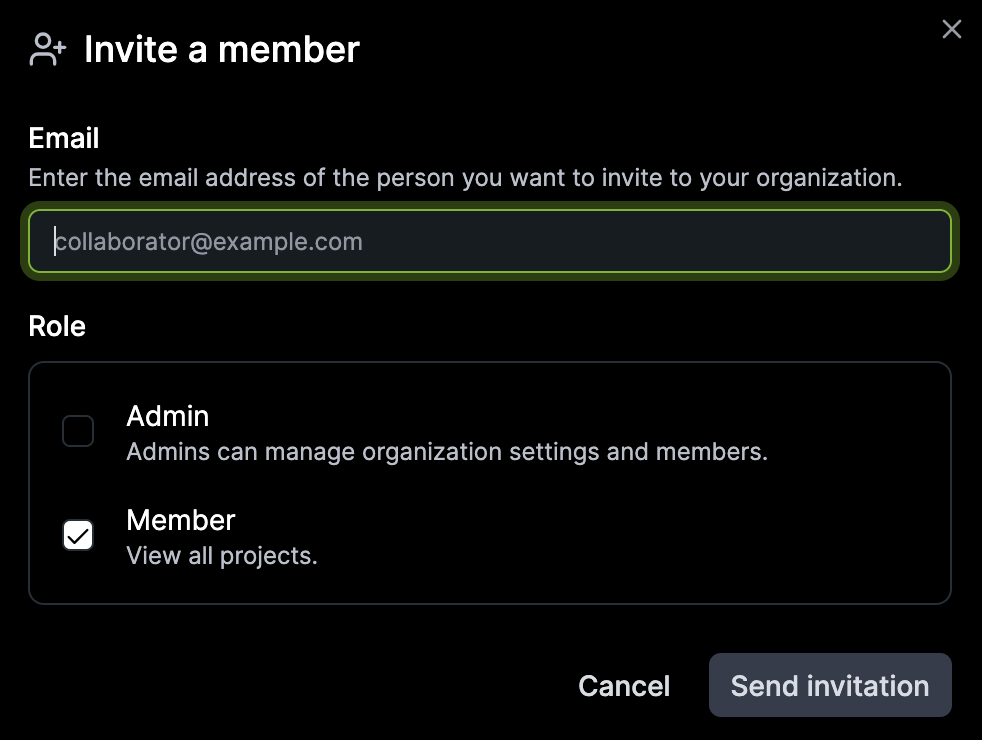
After sending, pending invitations appear in the members list.
Accepting an Invitation#
The invited member receives an email with an Accept Invitation link.
Clicking Accept takes you to a dedicated invitation page where you can review the invitation details. The page shows a loading state while processing your request, providing clear visibility into the acceptance process. Once accepted, you'll see a confirmation message and can begin exploring your new organization.
If you have multiple email addresses associated with your GitHub account, you can accept an invitation sent to any of those addresses by logging in with any associated email.
GitHub Re-authorization#
If your GitHub authorization has expired, you'll be automatically redirected to re-authorize with GitHub when accepting an invitation. This happens seamlessly in the background—you'll briefly see a loading screen before being redirected to GitHub's authorization page.
After you authorize, you'll be automatically returned to the invitation page where you can complete the acceptance process. This ensures that invitations sent to any of your GitHub-associated email addresses are properly recognized.
