

To use Slack as a deployment target or data source, you need to install the Dosu Slack App.
Installing the App#
- Go to Connections > Deployments
- Select Slack
- Click Add to Slack workspace
You'll be redirected to Slack to authorize the installation. Select the workspace where you want to install Dosu.
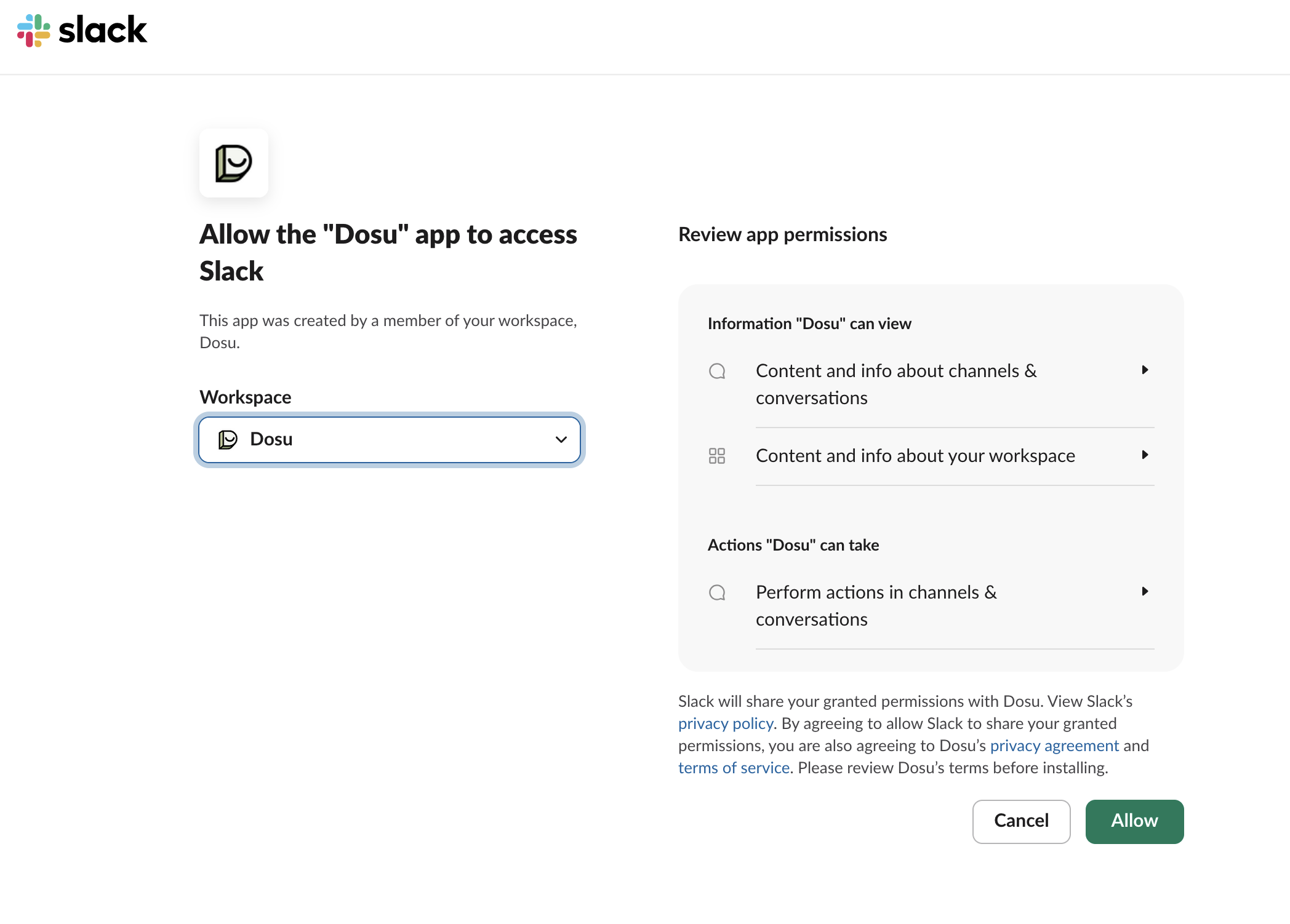
After authorizing, you'll be redirected back to Dosu to complete the setup.
Permissions#
The Dosu Slack App requests the following permissions:
Channel access: Read public and private channel info, read message history, join channels
Messaging: Send messages and add reactions
User info: Read user profiles and email addresses (to identify who's asking questions)
These permissions allow Dosu to read conversations, respond to questions, and identify users in your workspace.
Inviting Dosu to Channels#
After installation, Dosu can see all public channels in your workspace, but it only actively monitors channels where you've created a deployment.
For private channels, you must invite Dosu before it can be selected: /invite @Dosu
What Happens After Installation#
After you install the app, Dosu:
- Syncs the list of channels in your workspace
- Waits for you to create a deployment for specific channels
Channels are not automatically monitored. To start using Dosu in a channel:
- Create a Deployment and select the Slack channel
- Configure the reply mode (mention only, auto-draft, or auto-reply)
- Optionally, create a Data Source to index channel history for knowledge
For configuration options, see Slack Configuration.
Slack as a Data Source#
You can also use a Slack channel as a data source to index conversation history. This lets Dosu reference past discussions when answering questions, even in other channels or on GitHub.
When configured as a data source, Dosu backfills historical messages (up to 1000 thread roots) so your existing conversations become part of Dosu's knowledge base.
